Screen readers are assistive software programs that convert digital text into synthesized speech or braille output. They are essential tools that allow individuals with severe visual impairments or blindness to use computers, smartphones, and web applications.
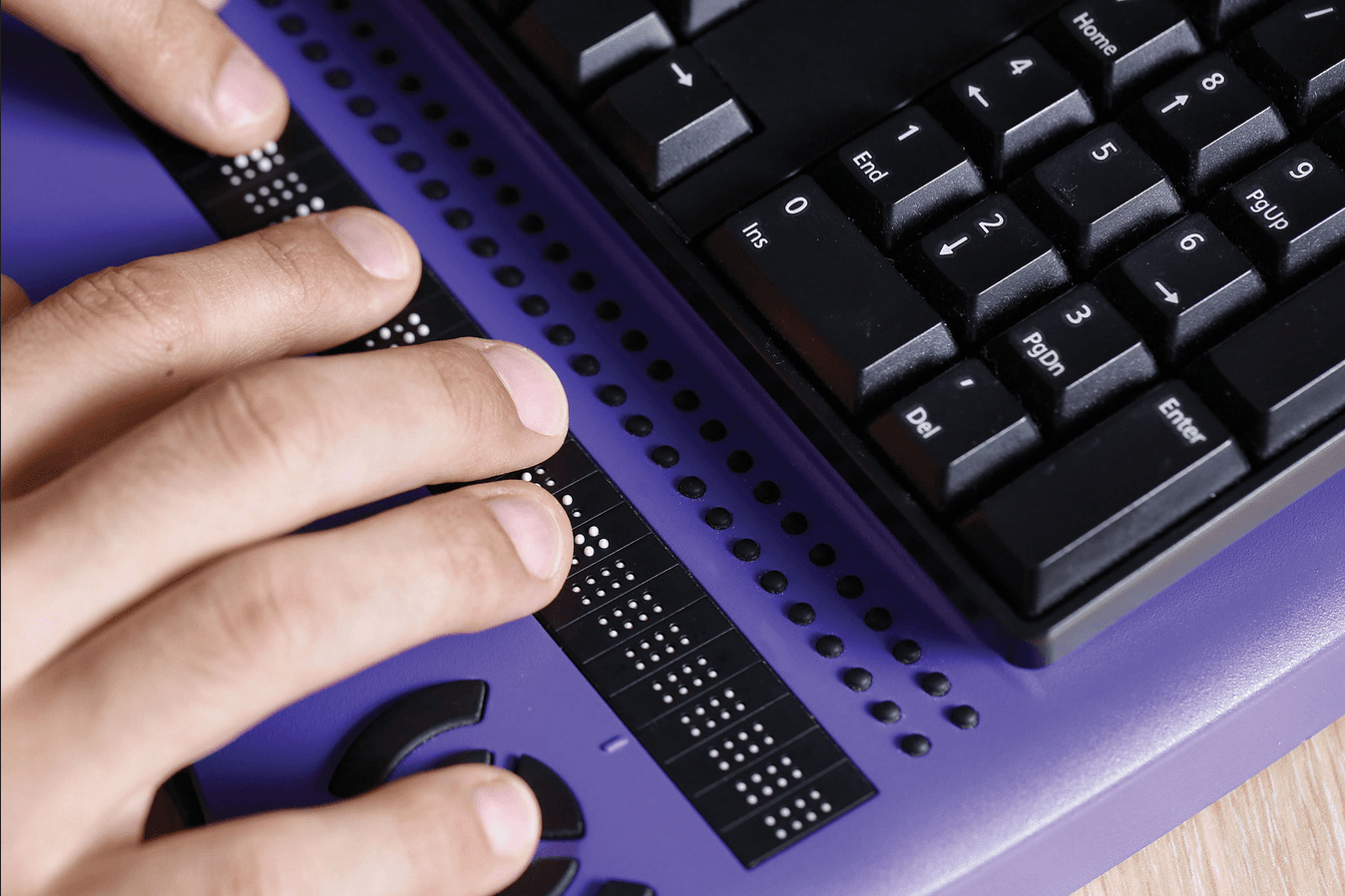
Desktop users often pair screen readers like JAWS or NVDA with refreshable braille displays.
- Tab: Jumps between interactive elements like links, buttons, and form fields.
- H: Skips directly to the next heading on the page.
- Arrow Keys: Reads the document linearly, line by line or character by character.
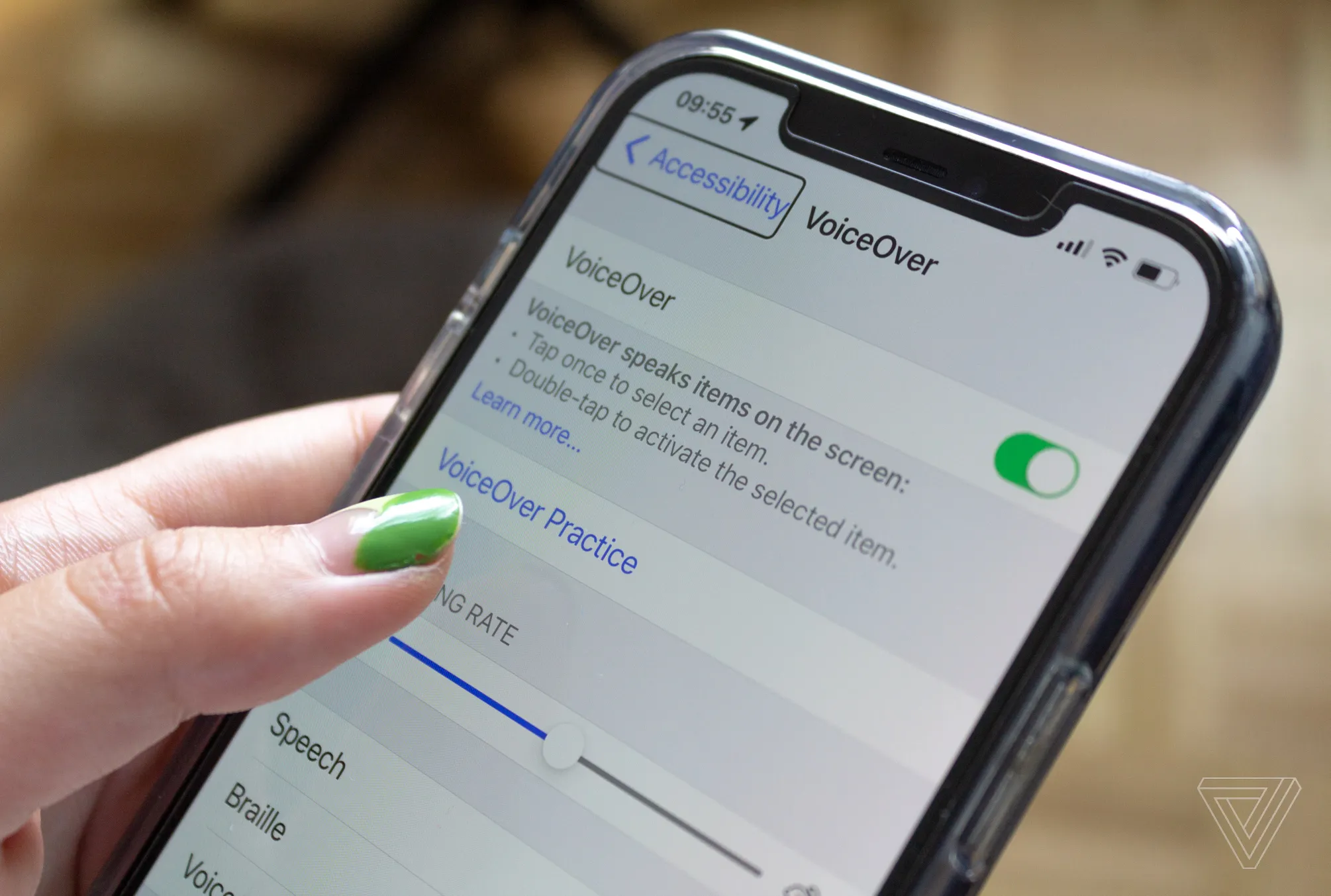
iOS VoiceOver and Android TalkBack rely on specific swipe gestures instead of keyboard strokes.
To support these tools, developers must ensure images have descriptive alt text, interactive elements are focusable, and ARIA labels are used when native HTML falls short.
How to use a screen reader
Every major platform ships with a built-in screen reader. While they all share the same fundamental goal, reading content aloud and enabling keyboard or gesture navigation, each has its own activation method, interaction model, and shortcut vocabulary.
Windows — NVDA & Narrator
Windows has two common options: the free and open-source NVDA (NonVisual Desktop Access) and the built-in Narrator. NVDA is the more widely used among blind users because of its broader compatibility and active community of add-ons.
To launch Narrator, press Win + Ctrl + Enter. Once active, Narrator will immediately begin announcing focused elements and reading content aloud. For NVDA, download it from the official site and launch it like any application — a startup sound confirms it is running.
Both screen readers use a concept called Browse Mode (or Scan Mode in Narrator), which lets you navigate a webpage using single-letter shortcuts without triggering interactive elements. Pressing H jumps between headings, L between lists, and B between buttons. Switching to Forms Mode (triggered automatically when you press Enter on a form field) allows typing and interacting with controls normally.
- NVDA + Space: Toggle between Browse and Forms Mode.
- NVDA + F7: Open the Elements List — a dialog listing all headings, links, and landmarks on the page.
- NVDA + Down Arrow: Read from the current position to the end of the page.
- Insert + F4 (NVDA): Quit the screen reader.
macOS — VoiceOver
Apple's VoiceOver is deeply integrated into macOS and requires no additional installation. Toggle it on or off with Cmd + F5 , or hold Touch ID three times on supported MacBooks. A welcome dialog will appear on first use offering a quick interactive tutorial — highly recommended for new users.
VoiceOver introduces the concept of the VoiceOver cursor, a separate focus that can move independently of the keyboard focus. Most shortcuts are built around the VO modifier, which defaults to Ctrl + Option. In Safari, VoiceOver's web navigation is particularly powerful, with a built-in Web Rotor that lets you jump between semantic elements at will.
- VO + U: Open the Web Rotor to browse headings, links, form controls, and landmarks.
- VO + Arrow Keys: Move the VoiceOver cursor through elements on the page.
- VO + Space: Activate (click) the element under the VoiceOver cursor.
- VO + A: Read all content from the current position.
iPhone & iPad — VoiceOver
iOS VoiceOver turns the entire touchscreen into an exploration surface. Enable it under Settings → Accessibility → VoiceOver, or ask Siri to "Turn on VoiceOver" For quick access, you can also assign it to the Accessibility Shortcut (triple-click the side or home button).
Once active, tapping any element announces it aloud without activating it. To activate the selected element, double-tap anywhere on the screen. Navigation shifts from direct touch to a gesture-based model — swiping right moves to the next element, swiping left goes back, and a three-finger swipe scrolls the page.
- Swipe right / left: Move to the next or previous element.
- Double-tap: Activate the selected element (equivalent to a tap).
- Two-finger swipe up: Read all content from the top of the screen.
- Rotor gesture (two-finger rotation): Open the Rotor to switch navigation mode — headings, words, characters, links, and more.
Android — TalkBack
Google's TalkBack is the built-in screen reader for Android. Enable it under Settings → Accessibility → TalkBack. On most devices, holding both volume keys simultaneously for three seconds also toggles TalkBack on or off — a shortcut worth memorising before enabling it for the first time.
TalkBack's gesture model is similar to iOS VoiceOver: swiping explores elements linearly and a double-tap activates the focused item. However, TalkBack adds support for multi-finger shortcuts and an angular gesture system (drawing an L-shape or diagonal) that allows experienced users to trigger frequent actions quickly.
- Swipe right / left: Move focus to the next or previous item.
- Double-tap: Activate the focused item.
- Swipe up then right: Open the TalkBack menu for reading controls and global actions.
- Two-finger swipe up / down: Scroll the page without changing focus.